In today’s digital age, having a stunning and functional website is essential for businesses, entrepreneurs, and individuals alike. While traditional website builders have long been the go-to solution, there’s a new player in town that is revolutionizing the way websites are built – Notion.
In this blog post, we will delve into the world of Notion website builders and explore how this game-changing platform can unleash the power of your website.
Whether you’re a seasoned web developer or a beginner looking to create a professional website, Notion offers a range of features and capabilities that make it a standout choice.
Section 1: Introduction to Notion Website Builders
To kick things off, we’ll start by introducing Notion and providing a brief overview of what it is and how it works. From there, we’ll dive into the concept of website builders and explain how Notion fits into this landscape.
We’ll explore why Notion is a compelling choice for building websites and highlight the unique features it brings to the table. Additionally, we’ll compare Notion with traditional website builders to showcase its advantages and benefits.
But people don’t have much patience, so before doing all that we will provide you the list of best website builders for Notion.
- Section 1: Introduction to Notion Website Builders
- Super.so
- Potion.so
- Bullet.so
- Feather.so
- Helpkit.so
- Simple Ink
- Section 2: Getting Started with Notion Website Builders
- Section 3: Building a Website with Notion
- Section 4: Advanced Features and Tips for Notion Website Builders
- Section 5: Showcasing Notion Website Examples and Success Stories
- Conclusion: Embracing the Power of Notion Website Builders
- Setting up a Notion Account
- Exploring Notion's Interface and Features
- Understanding Notion's Blocks and Templates
- Customizing Your Website's Look and Feel
- Adding Pages and Navigation Menus
- Planning Your Website Structure
- Creating Pages and Sections
- Adding and Formatting Text Content
- Incorporating Images and Multimedia
- Using Notion's Database and Tables for Dynamic Content
- Notion Integrations for Enhanced Functionality
- Collaboration and Teamwork with Notion
- Creating Interactive Elements with Notion
- Implementing E-commerce Features on Notion Websites
- Custom Domain Setup and Hosting Options
- Troubleshooting Common Issues and Errors
- Notion Website Showcase: Inspiring Examples
- Success Stories of Businesses and Individuals using Notion as a Website Builder
- Tips and Best Practices from Notion Website Builders
Disclosure: This post may contain affiliate links. This means if you click on one of the links and purchase anything I may receive some affiliate commission at no extra cost to you. Thanks in advance for your support.
Best Notion Website Builders
Super.so
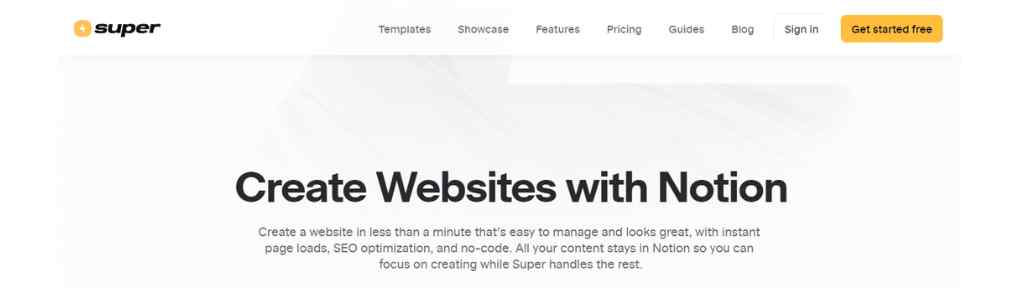
Super is the best website builder for Notion, using your Notion pages you can create SEO optimized websites.
You just need to copy the URL of your Notion page and paste it into Super, it will load the subpages and build your site automatically within seconds.
You can add custom domain, customize theme, change colors, manage the URLs and a lot more using Super.
You don’t need to worry about the technical SEO as super provides you fast loading speed with their global CDN which in turn provide the audience a great user experience as well as improve in site ranking.
With the no code theme designer add your own custom branding, use custom navbar and footer to make the user experience smoother, also use custom favicon.
Super creates automatic sitemaps for your Notion site and enhances the crawlability and makes it accessible with semantic HTML.
You can easily manage the meta tags and convert the long URLs into pretty ones. It comes with mobile responsive design.
Add custom domain to show authority and build trust and use their free SSL to make your site secure. You can add custom codes and see the live preview.
Get privacy friendly analytics with your Super sites which gives you page specific global data in beautiful dashboard and does not require any setup.
You can also make your Notion pages password protected & integrate your Super site with online form builders like Tally, analytics tools like Fathom Analytics, and some other tools like Gumroad or lemonsqueezy, etc.
Various paid and free templates are available and you can found the best Super sites on their showcase section, Jasper art Gallery & the Circle career page is also built using Super.
Super Pricing
Use Super as a free Notion website builder with ‘super.site’ domain and ‘Made with Super’ badge. Remove the badge and use your custom domain with the Personal plan which costs $12/month per site (billed annually).
The Pro plan costs $22/month per site (billed annually) and gives you more features with priority support.
Potion.so

Although Super is a great website builder for Notion but people always look for alternatives and Potion is the best alternative to Super.
You can generate speedy sites with custom domains and SEO using Potion. You can check all the supported blocks, only few of them are not supported.
Potion also provides you useful Notion widgets that you can embed for free. You can use your own custom domain & potion will host your site by pulling content from your Notion.
You can use the real-time editor & use your own style by adding snippet injection, various templates & guides are also available.
Potion generates user friendly URLs using your page title and helps you to optimize your site for SEO.
It gives your Notion site superfast page speed and you can also make your site password protected if you want.
Potion Pricing
You can use this Notion website builder for free for just 1 site with Potion badge & Potion subdomain. Use your custom domain with 1 site for the cost of $10/month (billed annually).
It will cost $24/month (billed annually) for up to 3 sites and $48/month (billed annually) for up to 8 sites.
Bullet.so
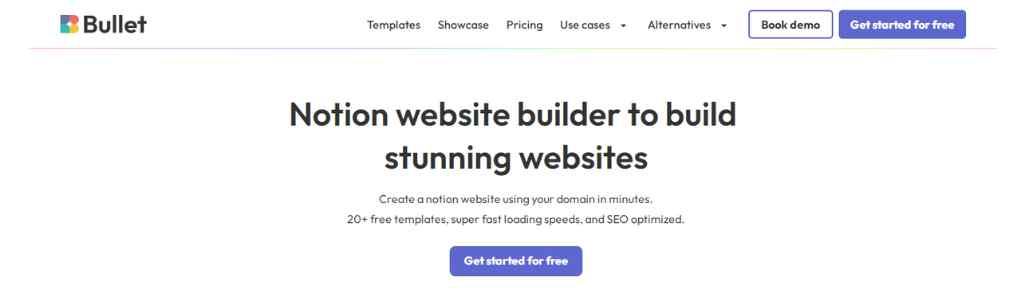
Bullet is another platform that lets you create stunning, SEO-optimized, fast loading websites with Notion.
You can use Bullet very easily with its familiar interface and easy content management and create your Notion website with your own custom domain.
Bullet gives you fast loading speed and create automated sitemaps, it also takes care of 301, 302 redirects, RSS feeds, & JSON LD schema.
Using Bullet you will get world class analytics and will be able to track unique visitors, average pageviews, bounce rate, etc.
20+ cutomizable templates like Blog, Knowledge Base, Directory, Portfolio, etc are readily available to you and necessary integrations are also there.
Bullet Pricing
You can use Bullet for free with unlimited bandwidth and unlimited pageviews with a single site but can’t use custom domain.
You can use your own custom domain with 1 site with the Personal plan of $7/month (billed annually) but you will not get password protection.
You can get that with the Startup plan of $15/month (billed annually) with 3 sites but the auto publishing feature is still not available.
Get all the features and use it for up to 8 sites with the Business plan of $49/month (billed annually).
Feather.so
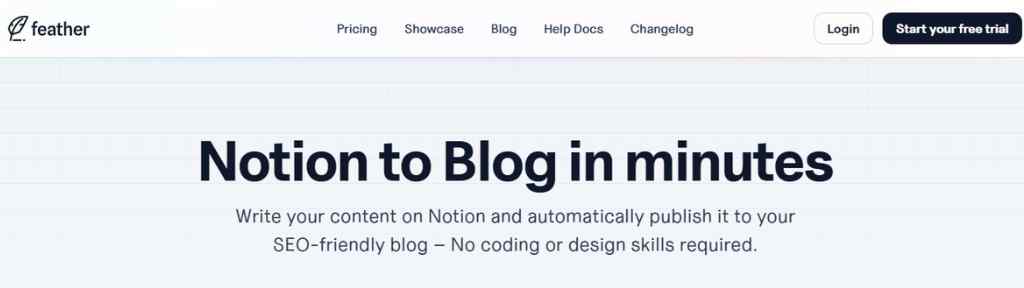
Feather is another alternative to Super & Potion. You can create your blog from your Notion within minutes.
You can create unlimited blogs without paying any additional cost and by using Notion as your CMS.
Use your own custom domain and get analytics (page views, visitors, referrers, etc.) for each of your blog sites.
They provide you inbuilt form with double opt-in feature to collect email from your blog readers.
This Notion blog builder set up meta tags & canonical links, add structured schema markups to your posts and gives you superfast speed. So, you don’t have to think about SEO.
You can also add your blog on the subfolder if you want. To use Feather you need to add your Notion database, map your fields, choose your domain or subdomain and you’re ready to go.
Feather Pricing
Feather has the most simple pricing plan. It costs $39/month or $390 yearly with all of its features and 10K pageviews per month. The pricing will increase only if your pageviews increases.
Helpkit.so
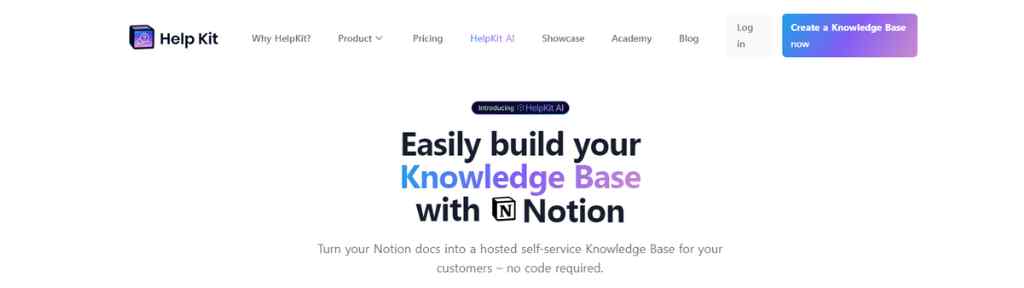
If you want to turn your Notion docs into a hosted self-service knowledge base then Helpkit is the platform.
You can either create SEO optimized standalone pages with custom appearance and your custom domain or you can embed the widget on your site.
Helpkit is useful for creating world class product documentation, API docs, onboarding walkthroughs, and for building a help center to serve your customers.
To use Helpkit you can duplicate their template to your own Notion workspace then make your root Notion page public and paste the URL into Helpkit’s dashboard.
After that customize it and see the preview, if you are satisfied then publish it. Just like the previous platforms you can use your custom domain and Helpkit takes care of SEO of your Notion site.
Now they have introduced Helpkit AI which is a GPT-4 powered Chatbot that you can train with your company’s knowledge base and it can serve your customer 24/7 and resolve their problems.
Helpkit Pricing
The Starter plan costs $19/month per site with 25 articles and 1 seat. The Business plan costs $39/month per site with 100 articles and 5 seats & more premium features.
Get everything with the Professional plan of $79/month per site which gives you 1000 articles and 10 seats. The Helpkit AI Chatbot is an add-on and costs an additional $49/month.
Simple Ink
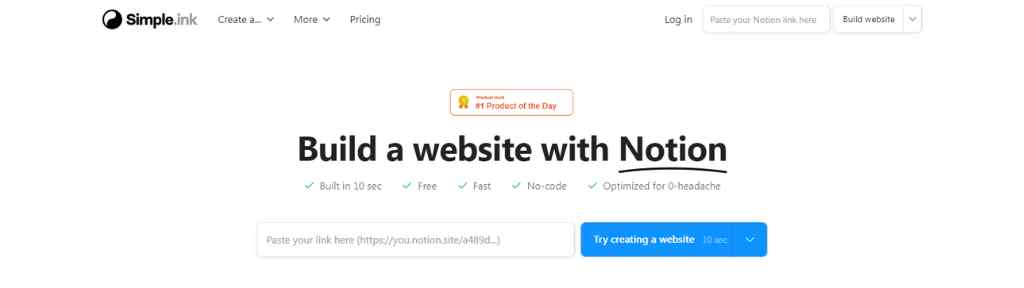
Simple Ink is the Notion website maker that lets you create a Notion site in just 10 seconds. All you need is the URL of a Notion page, just paste it in Simple.ink and your website will be ready within seconds.
You can create any type of Notion website like portfolio site, personal site, freelance site, ecommerce site, agency website, etc.
Various types of templates are readily available and integrations with necessary tools like analytics, payment site, form builders, membership sites, etc are available.
Create a database in your Notion and then use Simple.ink to create embeddable notion forms and get the submissions directly to your Notion. You will be able to add custom domain to your site.
Simple.Ink Pricing
Use it as a free Notion website builder to create unlimited forms with unlimited submissions with Simple.ink’s branding. The paid plan costs $10/month (billed yearly) with all the features.
Section 2: Getting Started with Notion Website Builders
In this section, we’ll guide you through the process of getting started with Notion as a website builder. We’ll cover everything from setting up your Notion account to exploring its interface and features. You’ll learn how to navigate Notion’s blocks and templates, and we’ll show you how to customize the look and feel of your website. We’ll also walk you through the process of adding pages and navigation menus to ensure seamless user navigation.
Section 3: Building a Website with Notion
Here’s where the real magic happens – building your website with Notion. We’ll provide a step-by-step guide on planning your website’s structure, creating pages and sections, and adding and formatting text content. We’ll also explore how to incorporate images and multimedia to make your website visually engaging. Additionally, we’ll showcase how Notion’s database and tables can be used for dynamic content, and we’ll teach you how to embed external content and widgets seamlessly. Finally, we’ll touch on the importance of optimizing your Notion website for SEO to ensure maximum visibility.
Section 4: Advanced Features and Tips for Notion Website Builders
For those looking to take their Notion website to the next level, this section is for you. We’ll delve into advanced features and tips that will enhance the functionality and interactivity of your website. We’ll explore Notion integrations to expand its capabilities, discuss collaboration and teamwork options, and showcase how to create interactive elements. We’ll also provide insights on implementing e-commerce features for those looking to sell products or services through their Notion website. Additionally, we’ll cover custom domain setup and hosting options, as well as troubleshooting common issues and errors.
Section 5: Showcasing Notion Website Examples and Success Stories
To inspire and motivate you, we’ll showcase a collection of impressive Notion websites through real-world examples. We’ll explore a variety of industries and niches to demonstrate the versatility of Notion as a website builder. Furthermore, we’ll share success stories from businesses and individuals who have achieved great results using Notion for their websites. Lastly, we’ll provide tips and best practices from experienced Notion website builders to help you make the most out of this powerful platform.
Conclusion: Embracing the Power of Notion Website Builders
In the conclusion, we’ll recap the benefits of using Notion as a website builder and highlight its potential for the future. We’ll leave you with some final thoughts and encouragement to explore and experiment with Notion’s website building capabilities. Whether you’re looking to create a personal blog, a portfolio website, or an e-commerce store, Notion can offer you a flexible and powerful solution.
So, buckle up and get ready to unleash the power of Notion website builders. Let’s dive into the world of stunning and functional websites like never before!
Introduction to Notion Website Builders
Notion is a versatile all-in-one productivity tool that combines note-taking, project management, and database capabilities.
However, it has also gained popularity as a website builder. With Notion, you can create beautiful, functional, and fully customizable websites without the need for extensive coding knowledge or complicated design tools.
Website builders are platforms or tools that simplify the process of creating websites by providing pre-designed templates, drag-and-drop functionality, and a user-friendly interface.
They enable users to create websites without having to write code from scratch or hire a professional web developer. Notion, with its intuitive interface and powerful features, takes the concept of website builders to a whole new level.
So, why should you consider using Notion as a website builder? There are several compelling reasons. First and foremost, Notion offers a seamless and intuitive user experience. Its clean and minimalist interface makes it easy for users of all skill levels to navigate and create their websites.
Additionally, Notion provides a wide range of blocks and templates that can be customized to suit your specific needs, allowing you to create unique and visually appealing web pages.
Another advantage of using Notion as a website builder is its flexibility. Notion allows you to organize and structure your website in a way that makes sense to you. You can create pages, subpages, and sections, and easily rearrange them as needed. This level of flexibility gives you the freedom to design your website exactly how you envision it.
Furthermore, Notion’s collaboration features make it an ideal choice for teams working on website projects. You can invite team members to collaborate in real-time, assign tasks, and leave comments, making it easier to work together and ensure everyone is on the same page.
When comparing Notion to traditional website builders, it becomes evident that Notion brings unique advantages to the table. Unlike many website builders that are limited to specific templates and designs, Notion offers complete customization. You have full control over the design, layout, and content of your website, allowing you to create a truly personalized online presence.
Additionally, Notion’s database and table functionalities enable you to create dynamic and interactive elements on your website, such as interactive forms, product listings, or event calendars.
Notion also excels in terms of cost-effectiveness. While traditional website builders often come with monthly or yearly subscription fees, Notion offers a free plan that provides ample features for most users. This makes it an attractive option for individuals and small businesses looking to create a website without breaking the bank.
In the next sections of this comprehensive guide, we will delve deeper into the world of Notion website builders. We’ll provide step-by-step instructions on getting started with Notion, explore the process of building a website from scratch, and showcase advanced features and tips to take your Notion website to the next level. Additionally, we’ll highlight real-world examples and success stories to inspire and guide you along the way.
So, if you’re ready to embark on a website-building journey like never before, let’s dive into the exciting world of Notion website builders.
Getting Started with Notion Website Builders
Now that we have introduced Notion as a powerful website builder, it’s time to dive into the process of getting started with Notion.
Whether you’re a beginner or an experienced user, this section will guide you through the essential steps to set up your Notion account, explore its interface and features, and start building your website.
Setting up a Notion Account
To begin your journey with Notion, the first step is to create a Notion account. Fortunately, creating an account is a simple and straightforward process. Start by visiting the Notion website and clicking on the “Sign Up” or “Get Started” button. You will be prompted to enter your email address and create a password. Once you’ve completed these steps, you will have successfully set up your Notion account.
Exploring Notion’s Interface and Features
Once you have created your Notion account, it’s time to explore the platform’s interface and features.
Notion offers a clean and intuitive user interface that makes it easy for both beginners and experienced users to navigate.
Upon logging in, you will be greeted with your Notion workspace. This is where you will create and organize your website’s content.
Notion uses a block-based system, where each block represents a piece of content such as text, images, videos, or embeds. You can add blocks by simply clicking on the “+” button or using the slash command (“/”) and selecting the desired block type.
Notion also provides a variety of pre-designed templates that you can use as a starting point for your website. These templates cover a range of purposes, from personal portfolios to business websites.
You can access these templates by clicking on the “Templates” button in the sidebar and selecting the category that aligns with your website’s goals.
Understanding Notion’s Blocks and Templates
One of the key features that sets Notion apart from other website builders is its extensive library of blocks. Blocks are the building blocks of your website’s content and can be easily customized and rearranged to create a visually appealing and engaging website.
Text blocks allow you to add and format text content, making it easy to create headings, paragraphs, bullet lists, and more. You can apply various formatting options such as bold, italics, and highlighting to enhance the readability of your content.
Image blocks enable you to add images to your website. Notion allows you to drag and drop images directly into the editor or upload them from your computer. You can also adjust the size, alignment, and caption of your images to ensure they fit seamlessly into your website’s design.
Video blocks allow you to embed videos from popular platforms such as YouTube, Vimeo, or Twitch. Simply copy and paste the video’s URL into the block, and Notion will automatically embed the video into your website.
Embed blocks provide the flexibility to incorporate external content into your website. Whether you want to embed a Google Map, a social media feed, or a third-party widget, Notion’s embed blocks have got you covered. Simply paste the embed code into the block, and your content will be seamlessly integrated into your website.
Customizing Your Website’s Look and Feel
One of the advantages of using Notion as a website builder is the ability to customize the look and feel of your website. Notion offers various options to ensure your website reflects your unique style and branding.
To customize your website’s appearance, navigate to the “Settings & Members” option in the sidebar and select “Workspace Settings.” Here, you can modify the workspace’s name, icon, and color to align with your brand identity.
Notion also allows you to customize individual pages by adjusting their cover images. You can choose from a selection of pre-designed cover images or upload your own to create a visually striking website.
Furthermore, Notion provides options to customize the font, text size, and color scheme of your website. By selecting the “Theme” option in the sidebar, you can choose from a range of predefined themes or create a custom theme that suits your preferences.
Adding Pages and Navigation Menus
Now that you have familiarized yourself with Notion’s interface and customization options, it’s time to start building the structure of your website. Notion allows you to create pages and sections to organize your content effectively.
To create a new page, simply click on the “+” button in the sidebar or use the slash command (“/”) and select “Page.” This will create a new page within your workspace. You can then customize the page’s title, content, and layout to suit your needs.
To create sections within your website, you can use the slash command (“/”) and select “Divider.” Dividers act as visual separators between different sections of your website and help organize your content in a visually appealing manner.
Once you have created your pages and sections, it’s important to establish an intuitive navigation menu to help visitors navigate your website seamlessly. Notion makes it easy to create navigation menus by utilizing its table and database functionalities.
Simply create a new table, add the page titles as rows, and link them to the corresponding pages. This will create a dynamic navigation menu that can be easily updated as you add or modify your website’s structure.
In the next section, we will dive deeper into the process of building a website with Notion. We will cover planning your website’s structure, adding and formatting text content, incorporating images and multimedia, and utilizing Notion’s database and tables for dynamic content. So, let’s continue our journey into the world of Notion website builders.
Building a Website with Notion
Now that you have set up your Notion account and explored its interface, it’s time to dive into the exciting process of building your website with Notion. In this section, we will guide you through the step-by-step process of planning your website’s structure, adding and formatting text content, incorporating images and multimedia, and utilizing Notion’s database and tables for dynamic content.
Planning Your Website Structure
Before diving into the creation of your website’s content, it’s crucial to plan the structure and organization of your website. This step will ensure that your website is user-friendly, intuitive, and easy to navigate. Take some time to think about the different sections and pages you want to include, as well as the hierarchy and flow of information.
Start by identifying the main sections or categories that your website will have. These could include “Home,” “About,” “Services,” “Portfolio,” “Blog,” or any other relevant sections based on your website’s purpose. Once you have determined the main sections, consider the subpages or subcategories that will fall under each section.
Creating a visual sitemap or sketching out the structure of your website on paper can be helpful in this planning phase. This will give you a clear overview of how your pages will be organized and allow you to make any necessary adjustments before diving into the actual creation process.
Creating Pages and Sections
With your website structure planned out, it’s time to start creating pages and sections within your Notion workspace. As mentioned earlier, pages act as individual content containers, while sections help to organize and separate different parts of your website.
To create a new page, click on the “+” button in the sidebar or use the slash command (“/”) and select “Page.” Give your page a meaningful title that reflects its purpose. For example, if you’re creating a portfolio website, you might create pages such as “Projects,” “Resume,” or “Testimonials.”
To create sections within your pages, use the slash command (“/”) and select “Divider.” Dividers act as visual separators and help to organize content within a page. You can use dividers to separate different projects in your portfolio, create distinct sections within your “About” page, or establish clear boundaries between different blog posts.
Remember to be consistent with your page and section titles to maintain a cohesive and organized structure throughout your website. This will make it easier for visitors to navigate and find the information they are looking for.
Adding and Formatting Text Content
Once you have created your pages and sections, it’s time to start adding text content to your website. Notion provides a range of formatting options that allow you to customize the appearance of your text and make it visually appealing.
To add text content, simply click on a block within your page or section and start typing. You can create headings by using the “#” symbol followed by your desired heading text. For example, “# About Me” will create a heading that says “About Me.” Use headings to create distinct sections within a page and make it easier for visitors to scan and navigate your content.
Notion also offers formatting options such as bold, italics, underline, strikethrough, and highlight. These options can be accessed through the formatting toolbar at the top of the editor. Use these formatting options to emphasize important information, create lists, or add stylistic elements to your text.
Additionally, Notion allows you to create hyperlinks within your text. Highlight the desired text, click on the “Link” icon in the formatting toolbar, and enter the URL you want to link to. This is useful for linking to external websites, internal pages within your Notion workspace, or downloadable files.
Incorporating Images and Multimedia
A visually appealing website is essential for capturing the attention of visitors and making a lasting impression. Notion allows you to easily incorporate images and multimedia into your website to enhance its visual appeal.
To add an image, click on the “+” button within a block and select “Image.” You can then either drag and drop an image file into the block or upload it from your computer. Notion supports various image formats, including JPEG, PNG, and GIF. Once the image is added, you can resize it, align it, and add captions to ensure it fits seamlessly into your website’s design.
In addition to images, you can also embed multimedia content such as videos and audio files into your Notion website. To embed a video, click on the “+” button within a block and select “Embed.” Paste the URL of the video from popular platforms like YouTube, Vimeo, or Twitch, and Notion will automatically embed the video into your website. Similarly, you can embed audio files from platforms like SoundCloud or Spotify to add a dynamic and engaging element to your website.
Using Notion’s Database and Tables for Dynamic Content
Notion’s database and table functionalities provide a powerful way to create dynamic and interactive elements within your website. You can utilize these features to create listings, portfolios, event calendars, product catalogs, and much more.
To create a database, start by creating a new page and adding a table block. Customize the columns to reflect the information you want to display. For example, if you’re creating a portfolio website, you might have columns for project name, description, date, and tags. Fill in the table with the relevant information for each entry. Notion allows you to filter, sort, and search your database, making it easy to organize and present your content in a user-friendly manner.
Tables can also be used to create interactive elements within your website. For example, you can create a table to display upcoming events, including the event name, date, location, and a link to RSVP. Visitors can interact with the table, filter events based on their preferences, and easily find the information they need.
In the next section, we will explore advanced features and tips for enhancing your Notion website. We’ll cover Notion integrations, collaboration and teamwork options, interactive elements, e-commerce features, custom domain setup, and troubleshooting common issues. So, let’s continue our journey into the world of Notion website builders.
Advanced Features and Tips for Notion Website Builders
Now that you have built the foundation of your Notion website, it’s time to take it to the next level. In this section, we will explore advanced features and provide tips to enhance the functionality and interactivity of your Notion website. From integrations to collaboration options, interactive elements, e-commerce features, custom domain setup, and troubleshooting, we’ve got you covered.
Notion Integrations for Enhanced Functionality
Notion’s power as a website builder goes beyond its native features. It offers integrations with various third-party tools and services that can enhance the functionality of your website. These integrations allow you to extend the capabilities of Notion and integrate it seamlessly with other tools you use in your workflow.
For example, you can integrate Notion with Zapier, a popular automation platform, to automate tasks and streamline your website management. With Zapier, you can set up automated workflows to trigger actions in Notion based on events in other applications. This could include automatically adding new form submissions to your Notion database or syncing data between Notion and other project management tools.
Another powerful integration is the ability to embed content from other platforms directly into your Notion website. For instance, you can embed Google Maps to showcase your business location, embed a live chat widget for customer support, or integrate a payment gateway to accept online payments.
Notion also offers integrations with services like Figma for design collaboration, integration with online form builders for creating interactive forms, and GitHub for version control of your website’s code. These integrations open up a world of possibilities, allowing you to leverage the power of Notion’s website builder alongside other tools that suit your needs.
Collaboration and Teamwork with Notion
Notion’s collaboration features make it an ideal platform for teams working on website projects. Whether you’re collaborating with other team members or seeking feedback from clients, Notion provides a seamless and efficient environment for teamwork.
With Notion, you can invite team members to collaborate on your website in real-time. This means that multiple people can edit and contribute to the website simultaneously, eliminating the need for back-and-forth communication and ensuring that everyone is on the same page. You can assign tasks, leave comments, and track progress within Notion, making it a valuable tool for project management.
Notion also allows you to control access and permissions for each team member. You can specify who has read-only access, who can edit the content, and who has full administrative control. This ensures that sensitive information is protected while allowing team members to collaborate effectively.
Creating Interactive Elements with Notion
To make your Notion website more engaging and interactive, you can leverage the platform’s native features and functionalities. Notion’s block-based system allows you to create a wide range of interactive elements within your pages.
For example, you can use toggle blocks to create collapsible sections that hide and reveal content with a click. This can be useful for creating FAQ sections, expanding on specific topics, or providing additional information without cluttering the page.
Notion also offers the ability to create interactive tables and databases. By using filters and sorting options, you can allow visitors to interact with the data and find the information they need more efficiently. This is particularly useful for websites that showcase product catalogs, event listings, or directory listings.
Additionally, Notion’s formula and rollup functionalities enable you to perform calculations and aggregate data within your website. This can be helpful for creating dynamic pricing tables, displaying real-time statistics, or generating reports based on data collected through forms.
Implementing E-commerce Features on Notion Websites
If you’re looking to sell products or services through your Notion website, you’ll be pleased to know that it’s possible to implement e-commerce features. While Notion doesn’t have built-in e-commerce functionality, you can integrate it with third-party tools to create a seamless online shopping experience.
One option is to integrate Notion with platforms like Gumroad or Shopify. These platforms specialize in e-commerce and provide features such as product listings, shopping carts, and secure payment processing. By embedding product listings and checkout buttons from these platforms into your Notion website, you can create a fully functional online store.
Another option is to utilize the database and table functionalities within Notion to create a custom e-commerce solution. You can create a database to manage your product inventory, including details such as product name, description, price, and images. By utilizing Notion’s formula and rollup functionalities, you can even calculate total prices and inventory quantities. While this approach requires more manual management, it provides flexibility and control over the design and functionality of your online store.
Custom Domain Setup and Hosting Options
To establish a professional online presence, it’s important to have a custom domain for your Notion website. A custom domain adds credibility and brand recognition to your website, making it easier for visitors to remember and access.
Notion allows you to connect a custom domain to your website by following a few simple steps. You can either use a domain you already own or register a new domain through a domain registrar. Notion provides detailed instructions on how to set up your custom domain, including updating DNS settings and configuring SSL certificates for secure browsing.
In terms of hosting options, Notion takes care of hosting your website on their servers. This means that you don’t have to worry about finding a separate hosting provider or managing server configurations. Notion’s hosting ensures that your website is accessible to visitors around the world, with reliable performance and uptime.
Troubleshooting Common Issues and Errors
While Notion strives to provide a seamless website building experience, you may encounter occasional issues or errors. It’s important to be prepared and familiarize yourself with common troubleshooting steps to minimize downtime and ensure the smooth operation of your website.
Some common issues you may face include formatting inconsistencies, broken links or embeds, or difficulties with collaborative editing. When encountering formatting issues, double-check your content blocks and formatting settings to ensure consistency. If you encounter broken links or embeds, verify the URLs and make sure they are correctly entered. For collaborative editing issues, make sure that all team members are using the latest version of Notion and have stable internet connections.
If you encounter more complex issues or errors, Notion provides a comprehensive help center and community forum where you can find solutions or seek assistance from the Notion team and the user community. Additionally, staying up to date with Notion’s product updates and announcements will help you stay informed about any known issues and their resolutions.
In conclusion, Notion offers a range of advanced features and tips to enhance the functionality and interactivity of your website. By leveraging integrations, collaborating with team members, creating interactive elements, implementing e-commerce features, setting up a custom domain, and troubleshooting common issues, you can elevate your Notion website to new heights.
In the next section, we will showcase inspiring examples of Notion websites and share success stories from businesses and individuals who have achieved great results using Notion as a website builder. So, let’s continue our journey into the world of Notion website builders.
Showcasing Notion Website Examples and Success Stories
In this section, we will explore a collection of inspiring Notion website examples and share success stories from businesses and individuals who have achieved remarkable results using Notion as a website builder. These real-world examples will provide you with inspiration and insights into the diverse possibilities that Notion offers for creating stunning and functional websites.
Notion Website Showcase: Inspiring Examples
- The Write Life – The Write Life is a popular website for writers, offering resources, advice, and inspiration. They have built their website entirely on Notion, showcasing the platform’s versatility. The Write Life utilizes Notion’s blocks and templates to create engaging blog posts, resource pages, and a comprehensive archive.
- Designers Guild – Designers Guild, a renowned interior design company, has embraced Notion as their website builder. Their Notion-based website showcases their portfolio, client testimonials, and a product catalog. The flexibility of Notion allows Designers Guild to create visually stunning pages that highlight their design expertise.
- The Startup – The Startup, a leading online publication for entrepreneurs, has leveraged Notion’s features to create a dynamic and interactive website. They utilize Notion’s databases to organize and display articles, author profiles, and a community forum. The Startup’s Notion website demonstrates the platform’s ability to handle large amounts of content while maintaining a user-friendly interface.
Success Stories of Businesses and Individuals using Notion as a Website Builder
- The Indie Musician – A self-employed musician used Notion as a website builder to showcase their music, upcoming events, and merchandise. By integrating Notion with third-party tools like Bandcamp and Eventbrite, they were able to create a seamless experience for their fans. The musician reported an increase in engagement and sales after launching their Notion website.
- The Freelance Designer – A freelance designer created their portfolio website on Notion, highlighting their past projects, client testimonials, and contact information. The clean and customizable design options of Notion allowed them to showcase their work in a visually appealing manner. As a result, they attracted new clients and received positive feedback on the professional presentation of their work.
- The Personal Blogger – A blogger with a passion for sharing personal stories and travel experiences used Notion to create a captivating blog website. Notion’s flexible block system allowed them to incorporate images, videos, and interactive elements seamlessly. They reported an increase in website traffic and reader engagement after migrating their blog to Notion.
Tips and Best Practices from Notion Website Builders
To help you make the most out of your Notion website-building journey, here are some tips and best practices from experienced Notion website builders:
- Plan your website structure: Before diving into the creation process, take the time to plan and organize the structure of your website. This will ensure a logical flow of information and make it easier for visitors to navigate.
- Leverage Notion’s blocks and templates: Explore Notion’s extensive library of blocks and templates to save time and enhance the visual appeal of your website. Experiment with different block types and customize them to suit your content and design needs.
- Utilize integrations: Take advantage of Notion’s integrations with other tools and services to enhance the functionality of your website. Whether it’s automating tasks, embedding content, or integrating e-commerce features, integrations can elevate your Notion website to new heights.
- Collaborate effectively: If you’re working with a team on your website project, make use of Notion’s collaboration features. Assign tasks, leave comments, and track progress within Notion to ensure seamless teamwork and efficient project management.
- Regularly update and optimize your content: Keep your Notion website fresh and engaging by regularly updating your content. Add new blog posts, update portfolio entries, and optimize your website for search engines to attract more visitors and improve your online presence.
By following these tips and learning from the success stories of others, you can harness the full potential of Notion as a website builder and create a remarkable online presence.
In the next section, we will conclude our comprehensive guide on Notion website builders. We’ll recap the benefits of using Notion, share final thoughts on the future of Notion as a website building platform, and encourage you to explore and experiment with Notion’s website building capabilities. So, let’s wrap up our journey into the world of Notion website builders.
Conclusion: Embracing the Power of Notion Website Builders
Throughout this comprehensive guide, we have explored the world of Notion website builders and discovered the incredible potential this platform offers for creating stunning and functional websites. From its intuitive interface and customizable features to its collaboration capabilities and integrations, Notion has proven itself as a game-changing tool in the website building landscape.
Notion’s versatility as a website builder allows individuals, businesses, and entrepreneurs to unleash their creativity and build websites that reflect their unique style and purpose. Whether you’re a freelance designer showcasing your portfolio, a blogger sharing your thoughts and experiences, or a small business owner promoting your products or services, Notion provides the tools and flexibility to bring your vision to life.
By getting started with Notion, you can create a website that is not only visually appealing but also highly functional and user-friendly. Notion’s blocks and templates make it easy to add and format text content, incorporate images and multimedia, and create interactive elements. Its database and table functionalities enable you to manage dynamic content and organize information efficiently.
Notion’s integrations with third-party tools further enhance its capabilities, allowing you to automate tasks, embed external content, and implement e-commerce features seamlessly. Collaborating with team members becomes effortless with Notion’s real-time editing and task management features, ensuring effective teamwork and streamlined project management.
As we have seen from the inspiring examples and success stories, Notion has empowered businesses and individuals to achieve remarkable results with their websites. From renowned publications to independent musicians and freelance designers, the possibilities with Notion are vast and diverse.
In conclusion, Notion website builders offer a powerful and accessible solution for creating beautiful, functional, and customizable websites. Whether you’re a beginner or an experienced web developer, Notion provides a user-friendly interface and a range of features that make website building a breeze.
So, why wait? Embrace the power of Notion website builders and unlock the potential of your online presence. Whether you’re building a personal blog, an e-commerce store, or a professional portfolio, Notion is here to help you create a website that stands out from the crowd.
Now it’s your turn to dive into the exciting world of Notion website builders. Explore its features, experiment with different designs, and let your creativity shine. The possibilities are endless, and the results are sure to be remarkable.
Happy Notion website building!
My Recommendation
Super is my recommended Notion website builder but if you want alternatives then Potion & Bullet are also good options to build your website with Notion.