Paid ads can give you quick exposure but organic traffic is always great as you don’t have to spend money on it. Quora is a goldmine for getting organic traffic but it has become very competitive to get your answers ranking on top.
So, in this Qapop review article, you will get to know how you can use this quora marketing tool to find useful insights and unlock the potential of Quora even if you have never used this popular question and answers platform.

Why You Should Use QApop?
Quora has a strong authority over search engines, it is one of the best places to find niche audiences and build trust and authority.
But writing answers can take a lot of time, With the help of QApop, this process will be less time-consuming and more effective.
You can even use it as a Quora ads tool to promote your answers by finding relevant questions.
QApop Review Of Features
The first thing that you can do after signing up is to analyze whether quora is relevant to marketing your business or not?
Quora Opportunity Analysis –
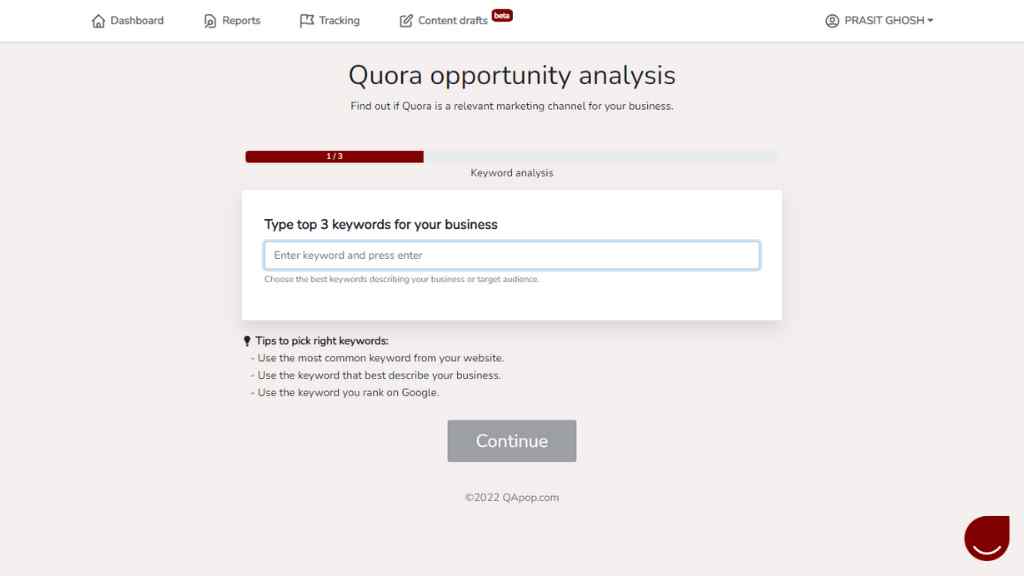
Here you will find a box in which you have to put the top three common keywords that best describe your business, you can also use the keywords that you are already ranking on Google.
After you put the keywords it will ask whether you are active on quora or not? choose according to your situation.
After hitting continue you will get these questions on your screen –
- Where is your target audience based? USA, India, or Other
- What kind of business do you do? B2B, B2C, or Other
- What best describes your business? Agency, SaaS, E-Commerce, Personal Use, or Other
- What’s your website URL?
Now after submitting all these, it will show you the weekly views related to the keywords that you have submitted in the first part, and it will also show you the views associated with particular keywords with the keywords breakdown.
Now at the top menu bar, you will find four items – Dashboard, Reports, Tracking, and Content Drafts. Now let’s explore these three features in detail one by one.
Reports –
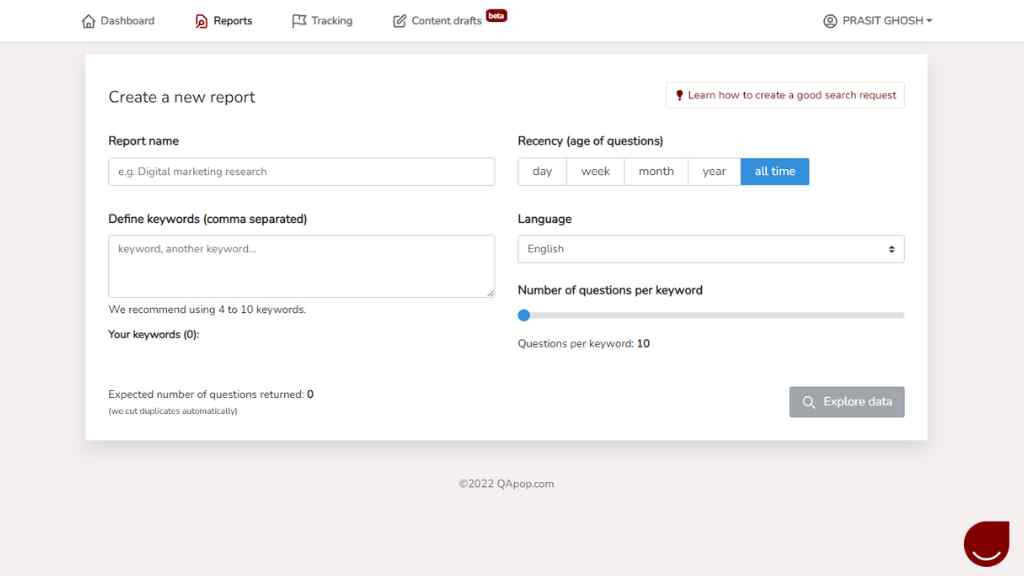
After reaching this page the first thing you need to do is set up a report name, You can name it anything that is useful for you to remember or track.
Just below the report name, there will be a box where you need to put the keywords that you want to analyze, try to put at least 4 keywords and separate them with commas, they recommend using 4-10 keywords, and remember it is always better to use long-tail keywords because if you use short-tail keywords then you will get more irrelevant questions.
On the right side, you will get an option to choose the timeframe of the questions, you can select the questions with the age of a day, week, month, year, or questions from all the time.
Below that you have the option to choose a language, English is the default one, other than that you can choose between French, Spanish, German, Italian, or Polish.
Then the last option you have is to select the number of questions you want to explore per keyword, you can select a minimum of 10 questions to a maximum of 50 questions per keyword. Remember the more questions you choose the more time it will take to prepare the report.
As you hit the explore data button this quora marketing tool will start fetching data and show you an estimated time to get the report ready, You don’t need to waste time by looking at the page as you will get a notification in your mail as soon as the report becomes ready.
Now in this section, you will get the list of best questions to answer in a table with some metrics like –
QApop score – It’s based on their own computational method to give you the questions where you can get more traffic.
Relevance – It Will show you the relevancy of the questions according to your chosen keywords.
Quora Traffic & Views – Monthly traffic that comes to the question and how many views it has gotten since it was asked the first time.
You will also get to see how many followers are there, how many people answered it, and how many upvotes it has earned. You can filter data in reports using eight different parameters.
If you want to run quora ads, you can get the same questions again in a table, but some metrics will change this time.
Instead of QApop score and relevance, you will get metrics like contextual score and behavioral score which are necessary metrics to run ads on quora.
In the last section, you will get keywords ideas with volume, CPC & competition.
Tracking –
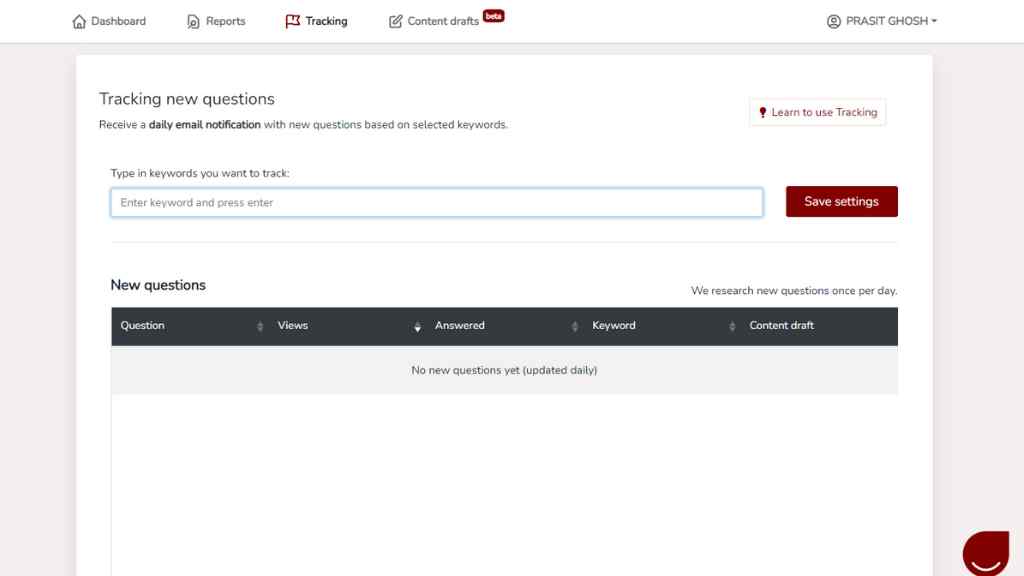
This is the next option in the menu just after reports. Here you can submit some keywords that you want to track & QApop will research quora on daily basis to find whether any new question is asked based on those keywords so that you can answer them as quickly as possible.
You can track keywords easily using this feature as you will stay updated by getting an email notification. You can set up a custom threshold for notifications.
Content Draft –
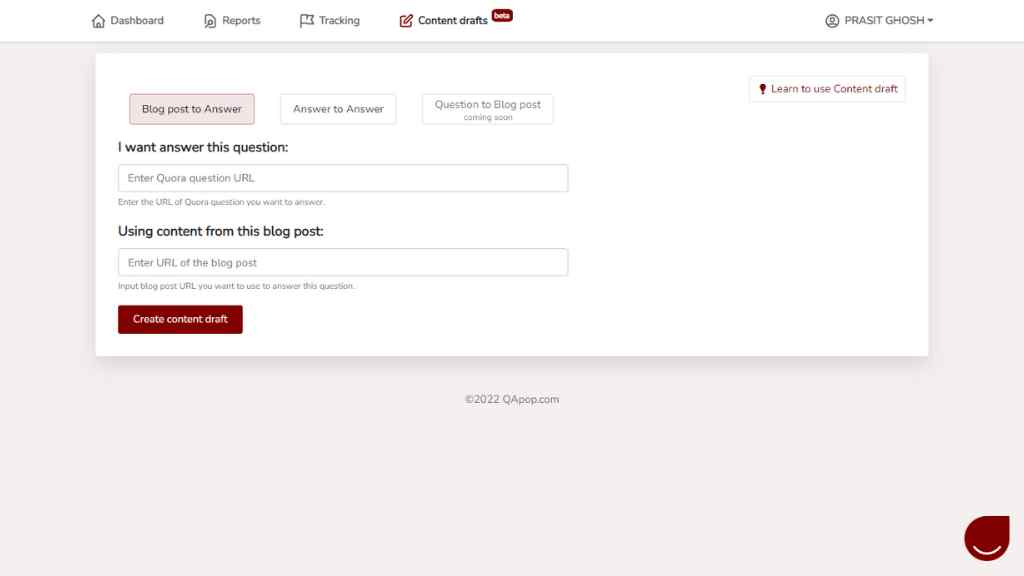
This is the final feature of the QApop tool that will help to generate quora answers, here you will get two options –
1. Blog post to Answer – Just put the URL of the quora question that you want to answer and below that you have to put the URL of a blog post that you want to use to answer that question (it may be your own blog or any other that you find to be helpful).
After you click on the create content draft button you will get a page with the content of that blog post on the left side and a blank editing place on the right side where you can edit the content or attach a link or image to it.
The content on the left will be divided into small parts into paragraphs and headings, and there will be an arrow clicking which you can easily shift that part to the right section.
On top of that, you will also get options to rephrase sentences, show full or less content, summarize at the half and keep only essential stuff.
2. Answer to Answer – This is almost the same as the first option but instead of using the URL of a particular blog post you will use the URL of a quora answer that is already existing. So, you can use this feature of QApop for quora copywriting.
3. AI-generated Answer – This feature is the recent addition in which you have to put the URL of the Quora question, then put the title of the question, you can also add up to three subheadings which are optional, and just click on the create content draft button.
My Tip:
If you don’t have your own blog post to use in this content draft section then you can use ai writing tools that can easily generate quora answers for you in minutes.
QApop Pricing –
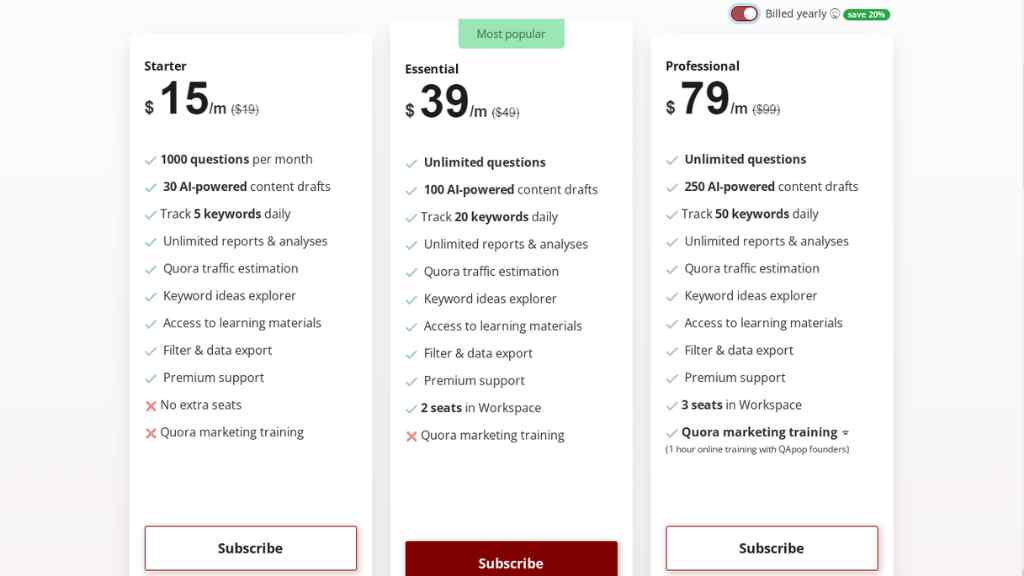
You can use QApop free with a 7-days of free trial without putting in your credit card details but the features will be limited. With the QApop free trial plan, you can explore a maximum of 300 questions, filter & data export and you will get access to the learning material.
The paid plan starts at $15/month (billed yearly) in which you will get 1000 questions per month, 30 AI-powered content drafts, and you can track 5 keywords on a daily basis.
The following essential plan will cost you $39/month (billed yearly) with unlimited questions per month, 100 AI-powered content drafts, and 20 keywords to track daily.
Pricing of the professional plan is $79/month (billed yearly) with unlimited questions per month, 250 AI-powered content drafts, 50 keywords for tracking and 1 hour Quora marketing training with QApop founders.
With all the paid plans you will get unlimited reports and analyses, quora traffic estimation, keyword ideas explorer, filter & data export, access to the learning material, and premium support.
However, as you have shown some patience by reading this far you will get a discount of 10% on any of the paid plans by using promo code – PRASIT
Sign up for the free plan of QApop by clicking the button below.
Conclusion on QApop Review
The tool is at an early stage, and more features might be added soon, so at this time considering it as the best quora marketing tool will not be wise, but it is definitely a useful tool to find insights and generate quora answers without wasting much of your precious time.
So, if you want free organic traffic from quora then you should give it a try with the free plan and upgrade later if you find it helpful.
Systeme.io review: All-in-one tool to grow your business faster