If you want to capture the step-by-step process of doing something and convert it into a document without putting any extra time or effort then Scribehow is the tool for you. Let’s explore more about it in this Scribehow review article.
Disclosure: This post may contain affiliate links. This means if you click on one of the links and purchase anything I may receive some affiliate commission at no extra cost to you. Thanks in advance for your support.
What is Scribehow?
Scribehow is a saas that helps you automate the documentation process by creating a step-by-step visual guide instantly as you do it.
What are the Use cases of Scribehow?
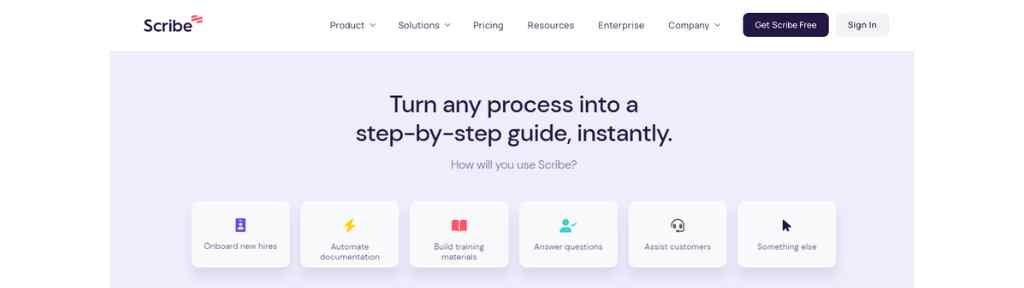
Process documentation is very useful and you can find your own use case but here are some of the common use cases of Scribehow –
- Build training materials.
- Onboard new users or new hires.
- Assist your customers.
- Solve any queries or problems.
- Create a how-to article automatically, etc.
How to use Scribehow?
First, create a new account if you have not done it already. After that, you need to download the Scribehow Chrome extension, enable it and pin it on the toolbar.
Now you need to create a team or you can join a team that is already created, after that visit your dashboard and on the top right corner you will find a ‘New’ button with a ‘+’ sign on it.
Click on it and you will get three options, record a scribe, create a page, and the desktop app (which is available with the Pro plan only).
Now you can start recording a scribe by hitting the ‘record a scribe’ option and choosing the tab you want to capture or you can use it more efficiently by using the Scribehow extension.
Just visit the tab that you want to capture, click the scribe extension icon on the toolbar which you have pinned previously and it will show you the start recording option.
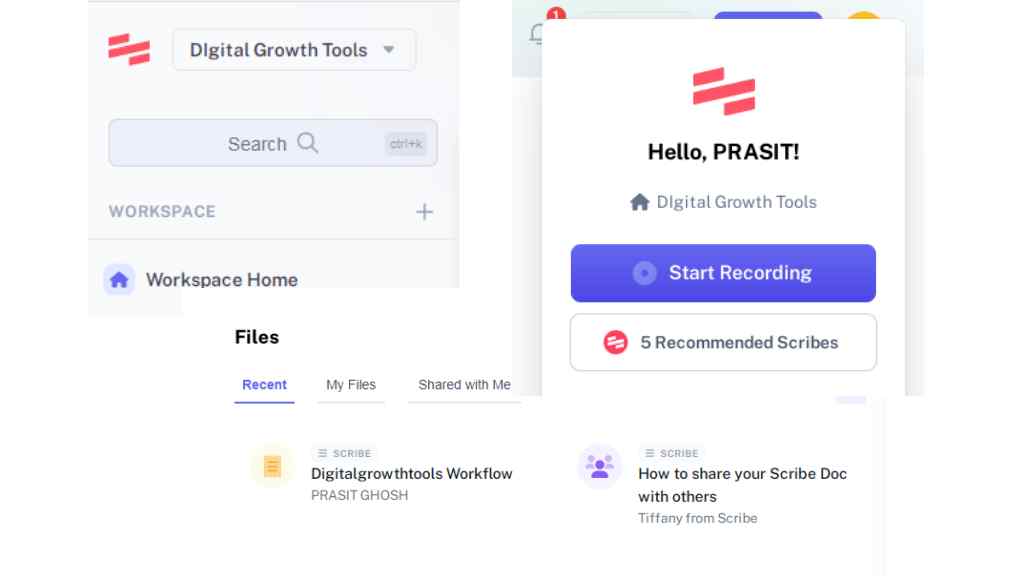
In both options, once you click on start recording a notification will pop up on your screen showing ‘Capture has started’.
As soon as it starts capturing your screen, you will get a blinking circular button at the bottom left corner of your screen.
Click on it and you will get three options – with the first option on the top you can pause your recording, with the second one you can delete the scribe, the third one will help you to move that blinking control icon to any of the corners of the screen and with the green tick button, you can complete the recording.
Once you click the complete recording, Scribe will automatically create the visual guide along with the instructions, screenshots, and clicks and you will be redirected to the workflow.
You can also visit your dashboard to get the workflow. Now you can change its icon, edit the name of the workflow, add a description, etc. Below that it will show the creator’s name, no. of steps included, and the time.
Now you will get all the steps with numbering, and all of them include an edit icon, and three dots on the right side, clicking which you can delete the step or copy the link to the step.
You can add screenshots to any step or edit the created screenshots only by having the Scribehow Pro plan.
In between each step, there will be an ‘add’ icon, using which you can add tips, header, alert, or GIF, you can also add or record any extra step. You can just drag the steps and change their sequence easily.
How to Share a Scribehow?
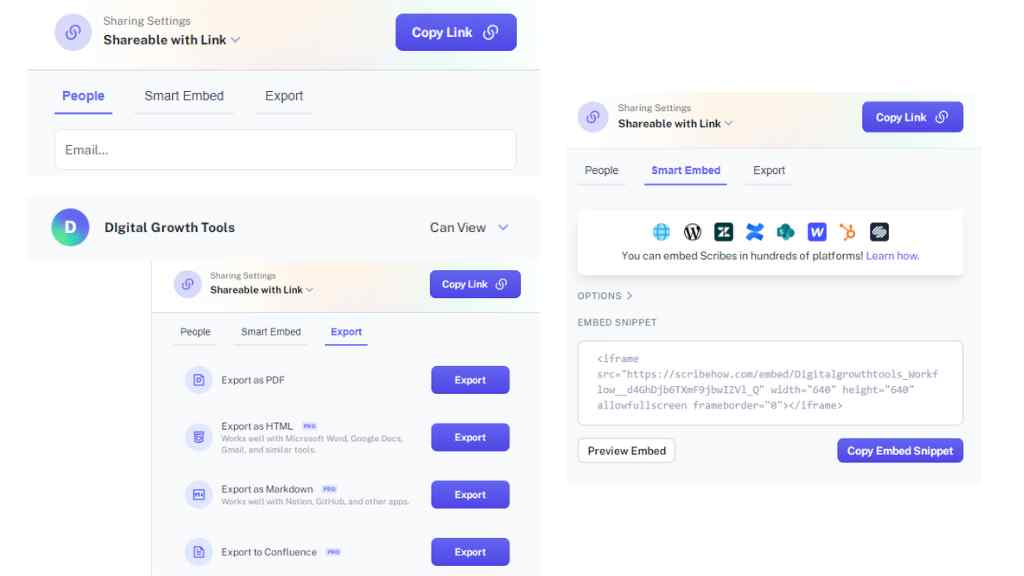
Sharing a scribe is very easy, you can just copy the link and share it with your teammates or anyone, you can also use their email to send them access.
The second option is to smart embed the scribe, you can copy the embed snippet and use it with useful platforms like WordPress, Hubspot, Notion, Webflow, etc.
You can also export the scribe as a pdf, if you get the paid plan then you will also be able to export it as HTML, as Markdown, or export it to confluence.
What is a Scribehow Page?
Scribe pages is a new addition that lets you organize multiple scribes into a single document making it easier to use.
Not only that you can also add text, links, lists, or videos to a scribe page, currently it supports only Youtube and Loom videos.
Just like WordPress or Notion, you can access its features by using the forward slash. Watch this demo video –
What is Scribe AI? How to use Scribe AI Step by Step
Scribe AI is the newly introduced feature of Scribehow which lets you create SOPs, onboarding guides, brainstorming a new process or to write an overview automatically with the help of AI.
To use Scribe AI just visit your dashboard and click on New+ and then click on create a page. After creating a page the first option that will be visible to you is create a page with AI.
In case you can’t see it then just use ‘/’ and choose draft with AI. After that choose the option that you require and write down what you want to create and withing a few seconds Scribe AI will prepare it for you.
Scribehow Top Features
Scribe Sidekick:
It surfaces every scribe a team member or community member has created and gives you recommended scribes that can save your day. More members means more power to Scribe sidekick. It get updated even when you change tabs and use it with side by side view and get your answers quickly using search and filter options.
Smart Blur:
Maintaining privacy and security in the internet world is not an easy task but with Smart Blur you can automatically redact sensitive information while capturing Scribes. Along with smart blur you can use manual redaction and smart privacy screen also.
Document Insights:
Get useful insights like total view, completions and completion rate. See created, updated and last edited by and also see user specific insights of Teammates and Guests. These are very helpful features.
Scribehow Pricing
With Scribehow free plan you can create unlimited scribes and unlimited pages. You can use its web application only. You can edit, texts, steps & flow and share the scribes as a pdf or using a shareable link. You get only individual sharing settings.
The Scribehow Pro plan costs $29 per user per month. With this plan, you can use its desktop app which is available for both windows and mac. You will be able to edit & customize screenshots, create branded guides, use manual redaction, share them as HTML or Markdown and get the Confluence integration.
You can schedule a demo to know the pricing of its enterprise plan that gives you automatic PII & PHI redaction, global sharing settings, Google SSO, SAML SSO, role-based access controls, and custom password policies.
Gotolstoy Review: Interactive Video Platform to get more leads
Surfer’s AI Growth Management Platform: Grow Flow Review
Krisp Noise Cancelling App Review
Frequently Asked Questions Related to Scribehow
What are the best Scribehow alternatives?
Tango.us is a tool that is very similar to Scribehow but it lets you create only 25 workflows for free, whereas you can create unlimited guides with Scribehow for free.
How much is the Scribehow Funding?
Scribe raises $30 million of funding as of the news. You can check this article.
I already had a scribehow account. The “Scribehow Free Forever” offer didn’t seem to work for me.
Then register a free forever account with another email Id or reach out to their support – contact@scribehow.com to use your existing account.